Sean Bagshaw Outdoor Exposure Photography

Images from the edge

See all image results...

Search Criteria
Exact matches only
Search in title
Search in content
Content Type
Select all
Search Posts
Search Prints & Stock Photos
Search Events
Search Pages
  • About
    • Sean’s Biography
    • A Look Through My Lens
    • Social Media
    • Alliances
    • Sign Up For My Newsletter
    • Website Tour
    • Interviews And Podcasts
    • CV
  • Tutorials & TK Photoshop Plugins
  • Learn Nature Photography
  • Videos From My YouTube Channel
  • Signed Prints
    • Favorites Of 2023
    • OREGON
    • CANYONS AND RIVERS
    • CITYSCAPES
    • COASTAL
    • DESERTS AND PRAIRIES
    • FLOWERS AND PLANTS
    • FORESTS AND TREES
    • MOUNTAINS AND LAKES
    • NATIONAL PARKS
    • STREAMS AND WATERFALLS
  • PRINT OPTIONS
  • Stock Photography
    • OREGON
    • NORTH AMERICA
    • THE REST OF THE WORLD
    • AGRICULTURE AND VINEYARD
    • BUILT BY PEOPLE
    • NATURAL BEAUTY
    • OUTDOOR AND ADVENTURE
  • Books & Calendars
    • Calendars
    • Washington Evergreen
    • Oregon, My Oregon
    • Photographing Through The Seasons
  • Workshops
  • Events
  • Photography Blog
  • Contact
  •  

New Article On PhotoCascadia: Canon 5D Mark II ISO Noise

May 13, 2011 by Sean Bagshaw Leave a Comment

I have a new article on the Photo Cascadia blog detailing testing I did on ISO noise performance in the Canon EOS 5D Mark II. Out of all the technological advances in digital cameras in recent years I feel that lower image noise at higher ISO settings has had the largest positive impact on my photography. It is amazing to be able to shoot hand held at small apertures or in low light and also to capture night sky images without star trails and produce images that are not destroyed by noise.

It turns out that there is more to the ISO/image noise story than I suspected. Even as cameras improved I assumed that regardless of how good the ISO performance was that lower ISO settings would always produce lower levels of image noise. Noise tests with the Canon EOS 7D that were posted on the web by Tony Loentzen changed that logic. His tests showed that the 7D actually produced cleaner images at some higher ISO settings. For example, he found that ISO 640 produced almost as little noise as ISO 100!

Curious to find out if the Canon 5D Mark II behaved in a similar way I decided to conduct my own test. To see my test images and find out what I discovered you can read my article on PhotoCascadia.com. I’d love to hear your thoughts, questions and feedback.

Filed Under: Digital Photography Tips, Photography Equipment Tagged With: camera testing, Canon EOS 5D Mark II, digital photography, photography technique

How Many Exposures To Bracket For Exposure Blending Or HDR?

September 8, 2010 by Sean Bagshaw Leave a Comment

As photographers we frequently struggle to overcome the limitations of our equipment in order to create the photographs we envision. One of the biggest limitations of traditional photography is the narrow dynamic range of light that can be contained in an image compared to what we see.

Techniques for blending exposures vary from simple to highly complex. They can be accomplished using skilled layer masking techniques in Photoshop. We also have the option to use one of a rapidly growing list of exposure blending programs commonly referred to as High Dynamic Range (HDR) software.

One of the most common questions I’m asked in classes and workshops on the topic of bracketing exposures for exposure blending and HDR imaging is, “how do you know how many exposures you need to bracket?”

The goal is to capture all the dynamic range tonal information in a scene in a series of exposures. The sequence of images below shows four exposures I took of a high dynamic range scene on the Columbia River. Having all the shadow and highlight information recorded in the various exposures allowed me to blend them using layer masks to create the final image. I could have also used one of many HDR applications to blend the exposure values.

To read the full article I wrote on the Photo Cascadia Blog go HERE.

In the first exposure I noticed that both the shadows and highlights extended beyond the ends of the histogram.
By underexposing a stop I was able to contain most of the highlights.
Underexposing two stops enabled me to retain detail in even the brightest highlights.
Finally I overexposed by two stops to get an exposure in which no shadow detail was clipped. I did take an exposure one stop over exposed but didn't end up using it in the final image.
After careful blending using layers masks I did some additional processing for color and contrast to arrive at the final image.

You can read the complete article on the PhotoCascadia.com blog.

Please leave a comment or question below.

Filed Under: Digital Image Editing Tips, Digital Photography Tips Tagged With: digital photography, Digital Photography Tips, digital workflow, Exposure Blending, HDR photography, photography technique

New Horizons In Photography With Better High ISO Performance

January 29, 2010 by Sean Bagshaw 6 Comments

New Horizons In Photography With Better High ISO Performance

Several months back I upgraded cameras from my trusty Canon EOS 5D to the newer model, the Canon EOS 5D Mark II. The Mark II boasted a range of new features that made it a worthwhile investment, including a larger and clearer LCD screen, a stronger and more weather proof build, easier to navigate menus, customizable settings, HD video, a sensor dust cleaning function as well as greater resolution (21 MP), updated processors and firmware and reportedly better image quality. Over time I have found that, really, just one feature of the newer camera has fundamentally changed the way I can take photos. That feature is the greatly improved performance at higher ISO settings.

Hand held at 1/40 second, f/9, ISO 500

ISO is the standard by which the sensitivity of film or a digital sensor is measured. Better sensitivity, lower noise and improved in-camera noise reduction at higher ISO settings are hallmarks of the latest generation of digital SLR cameras, and high ISO performance will surely continue to improve in the near future. I have always used Canon digital cameras by choice, but the most current high end digital SLRs from Nikon, Sony, Minolta and others all have much better high ISO performance than their predecessors.

Hand held at 1/100 second, f/8, ISO 320

I haven’t done quantitative tests to compare the high ISO performance of older DSLRs and current ones, but the improvements are so dramatic to be readily apparent with a simple inspection of the image files at 100%. There are plenty of independent testers out there who have done careful scientific comparisons if you want the raw data. My goal in this article is simply to share some images I have taken recently that either would have previously been impossible or would have required more equipment and more labor intensive techniques. Of course, you would need to see high resolution image files to get a complete understanding of the image quality, but for the purpose of this article I think these screen size images give you the main idea. I should also point out that in addition to improvements in ISO performance, improved noise reduction algorithms in software like Adobe Lightroom and Camera RAW, as well as improved image stabilization technology in lenses take some of the credit.

Hand held at 1/13 second, f/4.5, ISO 3200

How does better high ISO performance allow for new opportunities in photography? As the sensor becomes more sensitive to light as the ISO setting is increased, the camera is able to maintain faster shutter speeds in lower light conditions and still get a proper exposure. Essentially it means you can shoot in lower light situations or with smaller aperture settings without the need for a tripod. However, with past cameras the increased sensitivity to light at higher ISO settings came with an unacceptable trade off; increased image noise or digital grain. Until I acquired the Canon 5D Mark II, the higher ISO settings were generally useless to me. My images need to be very clean and sharp, so I would always shoot at the lowest ISO setting (ISO 100) to ensure adequate image quality. This almost always meant the need for a tripod to get a sharp image.

Hand held at 1/15 second, f/5.6, ISO 3200

Experimenting with the ISO capabilities of the 5D Mark II during my travels in Mexico this month have left me impressed and excited about the possibilities. I still use my tripod most of the time, but I find that in situations where a tripod is impractical, time prohibitive or creatively limiting I can often raise the ISO to between 200 and 500 to allow for fast enough shutter speeds for hand held shooting with a very slight loss in overall image quality. Images at these ISO settings are certainly good enough for publishing and even fine art printing. There are times when having the ability to photograph without a tripod is extremely freeing and allows for flexibility, mobility, spontaneity and creativity that wasn’t possible before.

Hand held at 1/20 sec, f/4, ISO 3200

What’s more, I have found that I can also hand hold my camera in minimal light situations, such as indoors or for night time city scenes, by increasing the ISO dramatically. I have increased the ISO to as much as 3200 and still been able to capture very usable images. A slight degree of noise in these images is acceptable to me for the fact that they would have been almost impossible to get otherwise. While I still return to the tripod if image quality is essential, it is exciting to be able to photograph people and other moving objects in low light conditions and not have them be blurred. Most of my night city photography does not include people because of the blurring of objects in motion with slow shutter speeds.  Being able to hand hold the camera and get sharp images of moving subjects indoors and at night opens a whole new world of possibilities.

Hand held at 1/30 second, f/4, ISO 3200

I’m sure the technology in ISO performance will continue to improve for some time. Within a couple of years there will be cameras that allow us to photograph in almost complete darkness with fast shutter speeds and produce noise free images. Until then it is exciting to know how good the ISO performance is right now, and that photographers have the ability to take photographs that were previously impossible or impractical.

Hand held at 1/15 second, f/7.1, ISO 500

If you found this article helpful, informative or otherwise useful, feel free to share it on the social media network of your choice using the handy links below. If you have anything to add, feel free to leave a comment. Thanks!

Hand held at 1/30 second, f/4, ISO 3200

New Photography Possibilities with high ISO Performance

Several months back I upgraded cameras from my trusty Canon EOS 5D to the newer model, the Canon EOS 5D Mark II. The Mark II boasted a range of new features that made it a worthwhile investment, including a larger and clearer LCD screen, a stronger and more weather proof build, easier to navigate menus, customizable settings, HD video, a sensor dust cleaning function as well as greater resolution (21 MP), updated processors and firmware and reportedly better image quality. Over time I have found that one specific attribute of the newer camera has had a bigger impact on the way I can take photographs than any other. That feature is the greatly improved performance at higher ISO settings.

I haven’t run any objective tests to make quantitative comparisons between older DSLRs and current ones, but there are plenty of independent testers out there who have if you want the raw data. My goal in this article is to share some images I have taken recently that either would have been previously impossible or would have required more equipment and more labor intensive techniques.

Better sensitivity, lower noise and improved in-camera noise reduction at higher ISO settings are hallmarks of the latest generation of digital SLR cameras, and high ISO performance will surely continue to improve in the near future. ISO is the standard by which the sensitivity of film or a digital sensor is measured. I have always used Canon digital cameras by choice, but the most current high end digital SLRs from Nikon, Sony, Minolta and others all have much better high ISO performance than their predecessors.

How does better high ISO performance allow for new opportunities in photography? As the sensor becomes more sensitive to light with increased ISO settings the camera is able to maintain faster shutter speeds in lower light conditions and still get a proper exposure. Essentially it means you can shoot in lower light situations or with smaller aperture settings, without a tripod, than at lower ISO settings. However, with past cameras the increased sensitivity to light at higher ISO settings came with an unacceptable trade off; increased image noise or digital grain. Until I acquired the Canon 5D Mark II, the higher ISO settings were generally useless to me. My images need to be very clean and sharp, so I would always shoot at the lowest ISO setting (ISO 100) to ensure adequate image quality. This almost always meant using a tripod.

Experimenting with the ISO capabilities of the 5D Mark II during my travels in Mexico this month have left me impressed and excited about the possibilities. I still use my tripod most of the time, but I find that in situations where a tripod is impractical, time prohibitive or creatively limiting I can often bump up the ISO to between 200 and 500 to allow for fast enough shutter speeds for hand held shooting with a very slight loss in overall image quality. Images at these ISO settings are certainly good enough for publishing and even fine art printing. In some situations the ability to photograph without a tripod can be very freeing and allow for creativity and camera positions that weren’t possible before.

What’s more, I have found that I can also hand hold my camera in very low light situations, such as indoors or with night time city scenes, by increasing the ISO dramatically. I have increased the ISO to as much as 3200 and still been able to capture very usable images. The value of these images in greatly enhanced by the fact that they would have been almost impossible to get otherwise. While I still return to the tripod if image quality is essential, it is exciting to be able to photograph people and other moving objects in low light conditions and not have them be blurred. Most of my night city photography does not include people because of the blurring of objects in motion. Being able to hand hold the camera and get sharp images of moving subjects in low light opens a whole new world of possibilities.

I’m sure the technology in ISO performance will continue to improve for some time. Within a couple of years there will be cameras that allow us to photograph by moonlight without a tripod and produce noise free images. Until then it is exciting to know that ISO performance is at a level right now that allows for types of shooting that were previously impossible or impractical.

Filed Under: Digital Photography Tips, Photography Equipment, Photography Travel Journal Tagged With: digital photography, Guanajuato, night photography, photography techniques, travel photography

Blurred Water Effect

October 19, 2009 by Sean Bagshaw Leave a Comment

Blurred Water Effect

I recently had a question from a photographer about achieving the classic blurred water effect that many landscape photographers use during full daylight. The blurry water effect comes from using a long shutter speed (.5 sec to 10 sec depending on speed of water) to allow the motion of the water to appear smooth.  In low light situations it can be easy, and sometimes unavoidable, to get a long enough shutter speed without any assistance. When more exposure time is needed also make sure you are using a tight aperture (f/22+) to let in less light and a low ISO (50-100) to decrease your camera’s sensitivity to light. In slightly brighter conditions a polarizing filter, which holds back about 1 stop of light, can help give a long enough shutter speed to get blurry water. In brighter daylight conditions you might also need to use a neutral density (ND) filter, or combinations of ND filters, to block some light (3 stop up to 10 stops depending on how bright it is) and give you a slower shutter speed. Singh-Ray and other filter makers also have variable ND filters that allow you to “dial in” the amount of filtration you need.0383912-20090722-Edit

Filed Under: Digital Photography Tips, Photography Journal Tagged With: blurred water technique, neutral density filter for longer exposure, photography how to, photography techniques, photography tips, sean bagshaw photography, smooth water technique, southern oregon photographer

The Difference Light Makes

June 26, 2009 by Sean Bagshaw Leave a Comment

The Difference Light Makes

Howard Prairie lupine right before sunrise.
Howard Prairie lupine at sunrise

For me, as for many photographers, light is the most important element in any photograph. Take these two photos for example. They were taken minutes appart during the June wildflower bloom in Howard Prairie in the southern Oregon Cascades. I like both, and other than the light, both are very similar. However, in the first image the sun has not yet crested the ridgeline so the scene is lit by indirect light that is being reflected from the sky and off of the surrounding landscape. It creates a very even wash of light with subtle transitions from darker to lighter areas and the feel that light is glowing from all directions, which it basically is. In the second image the sun has just crested the ridge and direct light is shining on the meadow and strongly backlighting the flowers and grass. The color is warmer, the contrast in the scene is much greater and there is a much stronger sense of the direction of the light. Knowing the characterisitics of different types of outdoor lighting situations helps me be to plan the timing of a photo to best convey the scene the way I envision it.

Filed Under: Digital Photography Tips, Photography Journal Tagged With: natural lighting, outdoor lighting, photography tip, sean bagshaw, southern oregon photographer, the difference light makes in a photograph, using natural light in photography

High Dynamic Range Photography Techniques

February 5, 2009 by Sean Bagshaw 14 Comments

High Dynamic Range Photography Techniques
This article is adapted from a presentation I recently gave to the Southern Oregon Photographic Association.

High Dynamic Range (HDR) photography is a type of photography that has seen a rapid growth in popularity recently. There are Flickr groups dedicated to it and it comes up regularly in photography forums across the web. In its most recent incarnation HDR photography involves combining multiple exposures of a scene using HDR imaging software, the most popular of which is Photomatix by HDRsoft. Just do a Google search for HDR photography or Photomatix and you can see thousands of examples of Photomatix HDR images.  The image below is typical of a lot of HDR images you will see out there. Some are technically excellent, some are uniquely artistic, some are captivating and some are just plain bad.

The purpose of HDR photography is to create an image of a scene that has a greater range of light values than can be normally be captured by a single film or digital image. Depending on how it is used, HDR imaging software can allow the photographer to create an image that is closer to what the human eye perceives when looking at a high dynamic range scene. However, more and more it is being used to create surreal, whimsical or fantastical photo illustrations that don’t necessarily reflect the human experience but fall into a whole new genre of photographic art (check out the Flickr group).

I often use the basic concepts of HDR imaging in my work because I like to photograph in very extreme lighting situations that are awesome to experience in person, but impossible to capture with a simple click of the camera shutter. Sometimes I use HDR techniques to create images that are pure fantasy. Most often my goal is to attempt to recreate my personal experience in a way that is more accurate than my camera can record. Therefore, much of my HDR photography does not have the stereotypical cartoonish, haloed, surreal look that you will find in a lot of the current HDR images being made. I also do not normally use Photomatix or other HDR software to create my HDR photos. Rather, I employ a variety of other techniques first, depending on the situation, and turn to software as a final option.

Before I get further into this discussion of high dynamic range imaging allow me to back up a bit and put a little context on the term “dynamic range”. Most simply put, dynamic range, as it applies to photography, is the difference between the maximum (brightest) and minimum (darkest) measurable light intensities for a given scene, film, sensor, screen, etc. This range in photography is often referred to in terms of stops. A stop equals a doubling of the amount of light. A one stop increase in light results in double the light intensity and two stops results in four times the light and so on. The following dynamic range values are open to much debate among photographers and a lot of different values can be found depending on who you read or talk to.  So to avoid getting an argument started, let me point out that I’m using values I borrowed from other sources and only use them as simple reference points, not as the final word on what the exact values may or may not be.

The human eye is said to have a dynamic range of as much as 24 stops. This would indicate that from the darkest shadow detail the eye can see, to the brightest highlight, the light intensity can double 24 times. That’s a bit misleading however, because as we scan a scene our eyes adjust rapidly to darker and brighter areas and our brain quickly composites the various information into what seems like a single image. In reality, if a person is to look at one part of a scene without scanning (this is closer to how a camera does it and is called instantaneous dynamic range) , the dynamic range of the eye is something closer to 14 stops. However, we normally perceive a scene with the greater effective dynamic range because we naturally scan with our eyes.

By comparison, slide film has a dynamic range of around 5 stops, print film around 7 stops and the data contained within a quality digital RAW file closer to 10 stops. The average scene you might photograph has a dynamic range of about 10 stops but the kinds of extreme lighting scenes that I like to photograph are often in that 14 to 24 stop range of human vision, and sometimes even beyond.  So the problem is that much of what we photograph is within the range of what our eyes can see, but outside the ability of a camera (film or digital) to record all at once. The result is that we often take images that either have shadows that are totally black (underexposed), highlights that are totally white (overexposed) or a combination of both. This can be really frustrating when you remember seeing an amazing sunset over a luminescent ocean, but your photos show only dark, muddy waves and a featureless white sky. Enter the need for HDR photography.

HDR photography is basically any technique for creating an image that contains a higher dynamic range than can normally be captured in a single frame in a camera (either film or digital). There are actually many ways to extend the dynamic range of a photograph , but a great number of digital photographers are now going strait to the computer software solution. While there are some great advantages to the “Photomatix” approach, I’ll point out some reasons why it might be worth it to have some other tricks in the HDR tool box as well.

So, what are some of the different ways to create higher dynamic range images? The ones I’m most familiar with include:

  1. darkroom techniques (available to traditional film shooters with serious darkroom skills)
  2. graduated filters
  3. careful processing of a RAW image file
  4. double processing a single RAW image file and manually blending the two versions together using photo editing software
  5. manually blending multiple bracketed exposures taken in the camera
  6. using HDR imaging software to automatically blend a set of bracketed exposures.

As it turns out, HDR photography is almost as old as photography itself (there is some good historical information on Wikipedia). In the late 1800’s photographers developed darkroom techniques that enabled them to create single images from two or more separately exposed negatives. This allowed them to produce a positive print that maintained the right exposure in both a bright sky and a dark foreground. Later, Ansel Adams and friends developed the Zone System which was designed to identify the best exposure for any scene that would later allow for the greatest degree of tonal information to be recovered in print. While not truly HDR because he was still working within the limits of a single exposure, his techniques did greatly improve the ability to get a high level of dynamic range from the negative to the print.

Graduated filters are perhaps the least post production intensive way to create HDR images. A graduated filter is generally a piece of glass or plastic that has a gradient on it that fades from dark (usually neutral gray unless a color shift is desired) to clear. The dark half of the filter is usually placed over the brighter sky with the transition lining up with the horizon and the clear portion over the darker foreground. The darker portion of the filter “holds back” some of the light (usually 1, 2 or 3 stops worth) while the clear portion lets all the light through from the darker foreground. While this doesn’t actually extend the dynamic range of the film or digital sensor in the camera, it does help balance a high dynamic range scene so that all the tonal information can be captured within the range of the camera (see example below). The biggest advantage to using graduated filters is that everything happens in-camera so there is no additional post processing time required. All darkroom and computer based HDR techniques require anywhere from several minutes to many hours of additional time. On the down side, graduated filters have a straight transition line that is very difficult to fit on a scene that doesn’t have a straight horizon, often resulting in a dark “grad line” cutting across trees, mountains, buildings or any other dark objects that project above the horizon.

Shooting and processing RAW image files (most current digital SLRs have the ability to shoot RAW files as well as jpegs) isn’t technically an HDR technique because it only uses the light captured in a single exposure. However, there is so much data captured in the RAW format that during processing using a RAW converter (many exist but most cameras come with RAW software.   Programs like Adobe Lightroom or Adobe Photoshop also support RAW processing) it is possible to recover both shadow and highlight detail that appeared to be outside the dynamic range when the image was taken. The degree of latitude, often one or more stops in either direction, can be enough to create a final image that has a much greater dynamic range than what the camera appeared to capture (see example below / click to enlarge). The advantages to this are that it is fast, easy and all done with a single exposure. One downside is that even RAW files are limited to how much dynamic range they can contain, so it only works to a point. Another is that trying to recover too much detail from deep shadows in this way can result in a high degree of digital noise.

Sometimes, I find that a single RAW file contains all the tonal range that is needed for a properly exposed image, but I’m not able to get the entire image to look good with a single RAW conversion. In these cases I will do what is called double processing the RAW file to create two different exposures and then manually blend the exposures using various blending techniques in Photoshop. Exposure blending is a tricky art/skill in itself that takes a lot of practice to do well. Alone, it could be the focus of a multi-day workshop (I’ll have to work on offering one), so there isn’t time to go into depth here. I have a very basic post on the topic HERE. In the examples below, the first image was RAW processed to have the desired sky exposure. The second is from the same RAW image file, this time processed for the desired foreground exposure.  The third is the result of blending the two exposures in Photoshop. This technique works great as long as the entire dynamic range of the scene is contained within the RAW file. For that reason this technically isn’t a true HDR technique either, but the results can be a much greater dynamic range than could be achieved by single processing the RAW file and way beyond anything that could be done with a jpeg capture or film.

When the dynamic range of a scene is too great to be reigned in with graduated filters or to contain within a single RAW capture, I apply the manually blended multiple exposure technique. The blending techniques I use here are the same as the ones I use with the double processed RAW file technique, and again are a topic for a multi-day workshop. The advantage of this approach is that I can take as many exposures in the camera as I need to contain the complete dynamic range of a scene. Using this technique I can easily take a series of exposures that can contain the full dynamic range of just about any situation, including the full 24 stops of human perception and even beyond. The blending process for combining two or more different exposures is tedious and can take hours or even days, and if not done well the result is obvious and bad. So, I only use it on images that I think are going to be great. There are many advantages. Most important to me is that this technique produces the cleanest, sharpest, artifact free, data rich final images. Another advantage is that I have complete creative and local control over how I blend the exposures and what I want the final image to look like, allowing me to get as close as possible to what I envisioned when I took the photo. In the example below, the dynamic range between the sky and the foreground was way beyond the 10 stops I could contain in a single RAW file. I didn’t want to use graduated filters so I could avoid the additional flare they can cause when facing into bright light and because of the irregular shape of the lighthouse projecting above the horizon. I bracketed four different exposures, but was able to create my final image by blending together just the darkest and lightest of them. I think the final result is not only appealing and believable, but also very high quality and noise free which means it looks great as a large print as well as on the computer screen.

Finally we come to the technique that a vast majority of HDR jockeys are using these days, and that is to combine the tonal values of multiple exposures using HDR imaging software, most popularly Photomatix. The technique for capture is the same as the previous technique, namely shooting on a tripod to avoid camera movement and bracketing two or more exposures that can contain the entire dynamic range of a scene, often in one stop increments. Some HDR images contain as many as seven different exposures or more. Using Photomatix is much quicker than manually blending, usually taking about five minutes or so. The advantages are that when it works well, it can do an amazing job and can sometimes handle tricky areas that are particularly difficult to manually blend. It can be a huge time saver and, as noted earlier, can produce some amazing surreal effects and artistic styles that can’t be obtained any other way. However, I usually only go to Photomatix as a last resort because, like with anything, there are trade offs. The controls in Photomatix are fairly blunt, making it difficult to make fine adjustments. Also, I find that what I see in the tone mapping (also a topic for another time) preview window is not always what the image ends up looking like once it has been rendered in its final form. Often times the resulting HDR image has strange color shifts, increased shadow noise, cartoonish colors, halos, edge fringing and an overall loss of contrast. Also, anything that moves in the scene from one exposure to the next creates weird ghost images in the final photo. In addition, the adjustments in Photomatix are only global, so any local adjusting that I need to do has to be done back in Photoshop, not saving me much time in the end.

In the following example I first blended four exposures of an old house using Photomatix to create the resulting HDR image. The software did a pretty good job in some areas. The image certainly contains a wide dynamic range of tonal values, but I wasn’t happy with the color in some areas, the overall contrast or the way that the movement of the clouds between exposures created problems in the final image. In addition, some areas of the sky were still overexposed. I fully admit that my skills using Photomatix are somewhat lacking, but I often find that no matter what I do, some images just don’t succeed.

Photomatix HDR image

Not satisfied with the result, I decided to spend the time working on a manually blended HDR image. It took a lot of painstaking work, but I found that the resulting image was much cleaner, with better overall dynamic range, color, contrast and sky detail. The manually blended image also has close to zero digital noise, edge fringing or artifacting making it a much higher quality file for creating fine prints.

Manual blend
Manual blend

The next photo (Double Falls) is of another high dynamic range scene. With a bright sky and very dark canyon I knew it couldn’t be handled with a single exposure. I shot several exposures and then generated an HDR image using Photomatix. I felt that in this case the program did a pretty respectable job. However, I decided I would also try my hand at a manual blend so I could do a direct comparison. Even at web resolution, my hand processed HDR has greater tonal contrast and density than the Photomatix image. I was also able to make creative decisions about localized luminosity, color and contrast that I could not with Photomatix.

While it is possible to get away with some digital artifacts and pixel degradation in web sized images, my large fine art prints have to be as sharp, clean and noise free as possible. Upon closer inspection, I noticed that the Photomatix image had much more shadow noise than the hand processed image, as well as strange color shifts in the water and areas that were still blown out.

Click to enlarge

The Photomatix HDR image also experienced edge fringing and loss of sky detail where clouds had moved between exposures.

Click to enlarge

So, in conclusion, I find that having multiple techniques to capture and create images when confronted with high dynamic range situations allows me to better express my visual experience and artistic vision through my photographs. Often the use of graduated filters or shooting and carefully processing my images in the RAW format is all I need to properly render the dynamic range of a scene that is just a little greater than average. As the dynamic range of the scene increases I begin to employ more agressive HDR techniques, such as double processing and blending a single RAW file or bracketing multiple exposures in the camera and blending two or more of these by hand. Sometimes I even use combinations of these techniques. Does HDR imaging software have its place? Absolutely. I choose to use it when time is a factor, when the images will only be shown at lower web resolution so noise and fringing isn’t as important, when I want to create something that has that very stylized “HDR look” or when nothing else I have tried works. In addition, I’m sure that HDR imaging software will continue to improve and advance. In the not too distant future, I fully expect to see digital cameras that have HDR sensors which will be able to capture 15, 20, even 25 stops of light or more in a single frame, which will make much of this discussion obsolete.

I’d love to hear other tips, techniques, opinions and experiences regarding HDR imaging, so please feel free to leave a reply or share this post.

Filed Under: Digital Image Editing Tips, Digital Photography Tips Tagged With: creating high dynamic range photographs, digital photography techniques, esposure blending, graduated neutral density filters, HDR imaging, HDR photography, HDRI, high dynamic range imaging, high dynamic range photography, photomatix, Photoshop techniques, sean bagshaw

Organizing The Digital Photography Workflow

January 23, 2009 by Sean Bagshaw 4 Comments

Organizing The Digital Photography Workflow

I recently had the opportunity to take an amazing one day workshop on digital photography workflow from Mac Holbert, co-founder of Nash Editions, widely known as the world’s first digital printmaking studio focusing solely on photography. Prior to Nash Editions, Mac Holbert was the Tour Manager for the music group Crosby, Stills & Nash. He co-founded Nash Editions with Graham Nash in 1987. If you aren’t familiar with Nash Editions or Mac Holbert I recommend reading this interview by John Paul Caponigro. John and Mac are both instructors with the Epson Print Academy.

Mac Holberts’s workshop revolutionized how I approach my workflow in Photoshop. While Mac knows and willingly shares a wide range of Photoshop actions, adjustments and techniques, it is his suggestions for how to organize and approach the digital photography workflow that I found most enlightening. As the saying goes, “give a man a fish and he eats for a day, teach a man to fish and he eats for life”. Mac refers to specific Photoshop techniques as the fish, but a well organized and purposeful work flow as knowing how to fish. He also points out that with a program as powerful as Photoshop, there are many ways to get to any single photoshop destination, but having a well organized workflow ensures that you don’t end up at the wrong destination, such as with damaged pixels or with workflow steps that can’t be reversed.

Mac emphasizes that the digital workflow should begin with adjustments that directly affect pixels (those not made on adjustment layers) and more global adjustments and then proceed toward more and more localized adjustments. He also suggests that your Photoshop layer stack be organized to reflect this progression.

A workflow following this type of progression might go something like this: start with adjustments that affect pixels, such as cloning, noise reduction and perspective adjustments. Then proceed to global tonal and color adjustments (made with curves adjustment layers) such as setting the black point, gray point, global contrast and global brightness. After those adjustments are made it is time to start targeting smaller regions of the image that need adjusting such as regional dodging and burning and targeted tone, saturation and contrast adjustments. Finally, the workflow is finished up with specific “spot” adjustments such as manual dodging and burning, tonal adjustments, midtone enhancement, local sharpening and so on.

Keeping the layer stack organized to reflect this progression is paramount. The following graphic is the one the Mac uses to give a basic illustration of what a well organized layer stack might look like.

My old workflow, largely self-taught, generally allowed me to achieve what I wanted with an image, but it was highly haphazard and disorganized, and I often worked myself into corners or created hard to resolve issues. I knew that there was a better, more efficient and less damaging approach. Mac’s suggetions were just what I was looking for. If you ever get the chance to attend one of Mac’s workshops, through the Epson Print Academy or elsewhere, I highly recommend it.

Filed Under: Digital Photography Tips Tagged With: best photography workflow, digital darkroom, digital photography, digital photography workflow organization, digital workflow, Epson Print Academy, John Paul Caponigro, Mac Holbert, Nash Editions, organizing your digital workflow, Photoshop techniques, Photoshop tips, sean bagshaw photography

Photo Journal: Photographing Double Falls

November 14, 2008 by Sean Bagshaw 3 Comments

Photo Journal: Photographing Double Falls

This amazing location required a 4:00 AM wake-up and a cross country hike through grizzly country in the dark up on Logan Pass in Glacier National Park. It was well worth the effort. Streams cascading off all sides of a bowl shaped valley converge at this narrow slot in the rocks. During the summer, melt water flows off the canyon walls in several places creating four of five separate falls, but in the fall just the two main falls remain.

I first became aware of this waterfall from Galen Rowell’s classic photograph. A couple of years ago it ran on the cover of Outdoor Photographer Magazine and included the following caption: “Light conditions like this are notoriously difficult to photograph. The contrast between the sky and the shadowed ground is too much for film or an image sensor to handle. At the time Rowell made this image, he used a split neutral-density filter to control the contrast. If he was alive and photographing the same scene today, Rowell would have used a digital camera. He’d have known that he could employ some sophisticated RAW-software techniques to double-process the image file.”

I took that advice and photographed the classic scene in two separate exposures, one for the sky and one for the dark foreground and then manually blended the two images in Photoshop to allow the entire range of light that I experienced to all be contained within a single image.

The magazine caption also noted the irony that in a location famous for being on the continental divide, a place where water usually flows in opposite directions, toward the east or the west, would also be a place where so many streams flow together.

Two exposure manual blend. Canon EOS 5D, Canon 16-35mm f/2.8 lens, 3 stop Sing-Ray split neutral density filter, circular polarizer, 3.2 sec @ f/10 (sky), 15 sec @ f/10 (fore ground), ISO 100

Filed Under: Digital Photography Tips, Featured Photo, Photography Journal Tagged With: glacier national park, landscape, logan pass, montana, mountains, photo, photography, scenic, sean bagshaw, sunrise, technique, waterfall

Longer Exposures For More Saturation and Luminosity

October 6, 2008 by Sean Bagshaw 1 Comment

Longer Exposures For More Saturation and Luminosity

Â

In situations involving low levels of light it can often be beneficial to obtain a longer exposure to allow the sensor/film more time to absorb color and glow. There can be a lot of color and light bouncing off clouds and hills that our eyes can’t pick up. Cameras are able to “see” into low light scenes by leaving the shutter open and collecting more light. If I really want to pull as much light and color from a scene as possible I’ll often use a neutral density filter (ND) along with my usual filter stack (polarizer and graduated neutral density when needed) and also set the ISO on my camera down to 50 in order to extend what was already going to be a long shutter speed.

A neutral density filter is a neutral gray piece of glass or plastic that is placed in front of the lens. Since it is neutral it doesn’t change the color of the image or do any other special effects. All it does is reduce the amount of light that can pass through the lens to the image sensor or film (kind of like wearing color neutral sunglasses). By reducing the amount of light coming in, the exposure time needs to be longer to get a properly exposed image. One effect of longer exposure times is the blurring of anything moving within the image (water, clouds, wind blown trees, etc.). Another affect is that if there is low level colored light washing over the scene it will saturate in the image over time. I use Singh-Ray neutral density filters because they are some of the most color neutral filters available and give excellent results. I also use Singh-Ray Graduated Neutral Density (GND) filters. GND filters are neutral gray at the top and fade to clear near the middle. They are used to hold back the light in one part of an image (like a bright sky) in order to balance the light across the scene.

The two photos above were taken one right after the other, the first at 6 sec @ f/20, ISO 100 with a 3 stop GND for the sky. The second was taken at 30 sec @ f/20, ISO 50 with a 3 stop GND and a 3 stop ND. Quite a difference 24 seconds of shutter time can make.

Filed Under: Digital Photography Tips, Photography Journal Tagged With: digital photography, exposure, filters, graduated neutral density, help, light, long exposure, neutral density filters, photography, pointers, saturation, singh-ray filters, techniques, tip, tips, tutorial

Photo Tip: The Difference Light Makes

August 18, 2008 by Sean Bagshaw Leave a Comment

Photo Tip: The Difference Light Makes

Photography is all about light. Without it, no photo. However it goes far beyond that. The type, direction, color, amount and quality of light, as well as the photographer’s ability to see and manage the light, are serious contributors to the success of a photo. The ability to see, feel and anticipate light as well as know how the camera will capture light are skills that take a long time to acquire. Some light is right for some scenes but completely wrong for others. The best way to learn what works and what doesn’t is to get out and shoot in all lighting conditions and stick around to shoot the same subject as light is changing, all the while making special note of how the light looks to the eye.

Sometimes it is difficult to know by eye just how much impact the light going to have on a photograph. The best way to realize the impact of light is to compare photos of the same subject matter under different lighting. The following two photographs really illustrate the value of such an exercise. These photos were taken less than two minutes apart, one before the sun rose over the horizon and the second, just after. There are times when the soft glowing light that comes just before sunrise gives perfect even, luminescent lighting to a scene, picking up subtle details and working its way into the deepest shadows. However, in this case, there isn’t enough separation of elements or correctly angled surfaces in the scene. The even lighting causes the tree, rocks and mountains to appear muddy and not well defined and the sky washes out to an unattractive white.

tree 1
tree 2

What a difference a little time makes. In the second image, just a few seconds later, bright, warm, low angle direct sunlight has broken over the horizon, side lighting the scene. It brings out color and adds needed definition and depth to the image, all things the eye looks for. In addition, the direct sunlight coming in at 90 degrees to the camera lens allow for the best polarization effect from a circular polarizer, enhancing the color of the tree and rocks and helping to darken the blue sky.

The composition itself isn’t particularly interesting, but the addition of the right light can make a surprising difference in how appealing it is to the eye. This is a great example of a particular type of light enhancing an image. Unfortunately, it isn’t a perfect formula for success and you shouldn’t try to achieve the same type of lighting for every image you take. In another situation you might find that the pre sunrise light actually creates the most appealing image.

It all comes down to time spent shooting in all lighting conditions, becoming more familiar with what works and increasing your chances of being there when the light is right.

Filed Under: Digital Photography Tips, Photography Journal Tagged With: landscape photography, light, outdoor photography, photography, photography technique

Inkjet Printer vs. Print Lab

March 7, 2008 by Sean Bagshaw 2 Comments

I recently went through a significant change in the way I have my photos printed. For about 7 years I produced all my own prints using ink jet printers. First a Canon and then an Epson Stylus PRO 7600 with Ultrachrome ink. I loved that I could be in control of the entire process, print on demand and easily print test proofs. I also thought it was the most cost effective way of printing and that the quality was on par with any print lab.

Within the last year I have had a change of perspective and have now switched over to using a professional print lab to produce all my prints. Two factors contributed to my switch. First, as my 7600 got a couple of years under its belt, combined with the fact that I sometimes go for a couple weeks without printing anything, it began to have issues with ink nozzles clogging, creating banding in my prints. I would then need to spend as much as two hours running the cleaning cycle to clear the nozzles. The time lost, as well as the cost in wasted paper and ink, became a source of stress and frustration. Admittedly, I have many photographer friends who properly maintain their printers and don’t suffer similar issues.

The second factor was my discovery that when printing on coated, non-absorbent papers (referred to as RC papers), such as glossy or semi-gloss, solvents in the inks are not absorbed by the paper and instead evaporate over time. When such a print is framed, the evaporating solvent condenses on the inside of the glass leaving a visible foggy residue. The issue is widely commented on in web forums and the offered solutions include waiting several weeks to frame prints, or to layer newsprint between prints and stack books on them for 48 hours to draw out the solvent. I didn’t have any luck with the newsprint approach, and some other prints that I let cure for a month and a half still fogged the glass when framed. To read an article specifically about the fogging problem click HERE. Much more can be found with a quick Internet search.
The combination of the two problems drove me crazy enough that I began having West Coast Imaging produce all my prints. They aren’t cheap, but the quality is amazing and they deal with maintaining the equipment and stocking paper and ink. Since the evaporation issue isn’t a problem with canvas and fine art papers, I have them print these with their Epson ink jet printer. For all my glossy and semi-gloss prints, I have them use their Chromira printer, which uses traditional chemistry based “wet” printing. In the end, I think that wet printing on glossy paper give superior results in color and contrast and it eliminates the strange reflections created by different ink densities when viewing ink jet prints at an angle. In addition, I like the selection of papers, such as Fuji Crystal Archive and FujiFlex super gloss, that are available with Chromira prints. Most importantly, the prints can be framed right away and don’t leave any residue on glass.

I still think that ink jet printers offer great color and quality and a lot of control and convenience for amateur and professional photographers alike, as long as one has the time and patience to maintain them and the evaporating solvent issue isn’t a concern. If you know anyone who wants to buy a 7600, mine is available for a really good price. I’ll probably get a 13″ ink jet for test prints and printing cards and small prints on matte papers.

Filed Under: Digital Photography Tips, Photography Business, Photography Equipment

Photo Tip: Foreground, Middleground, Background

February 13, 2008 by Sean Bagshaw 1 Comment

Photo Tip: Foreground, Middleground, Background
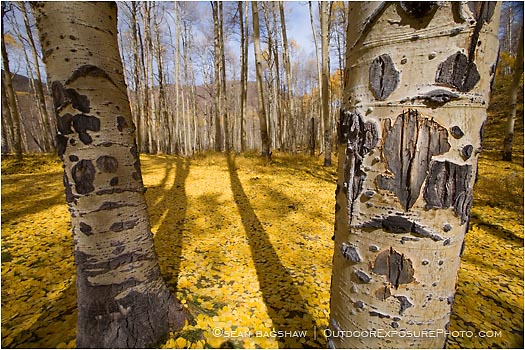
aspen

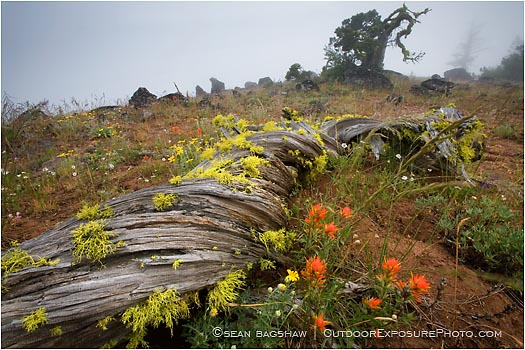
Successful landscape photography brings the viewer into the scene, making a two dimensional image feel three dimensional. It also tells a story, leading the eye through it, revealing more and more the further you go. There are many composition and lighting techniques that landscape photographers use to achieve these effects. One of the most powerful is the use of a wide angle lens and the careful placement of foreground, middle ground and background elements.

return

Ansel Adams was a pioneering master of this technique and used it in many of his famous landscapes of Yosemite and the American west. Some photographs that illustrate the foreground, middle ground, background technique include Sand Dunes, Sunrise Death Valley , Mount Williamson and White Branches, Mono Lake.

Galen Rowell’s photography has had a great impact on my work. He brought wide angle, foreground, middle ground, background technique to color photography and the 35mm format. Galen worked hard to create compelling, dynamic and dimensional compositions and to reveal the landscape in new ways. Examples of his work that exemplify the technique include Cuernos del Paine at dawn from Lago Pehoe, Valley Of Ten Peaks, and Wild Iris At Dawn.

William Neil is another one of my favorite outdoor photographers who often uses the technique in his work. I particularly like how he uses very subtle subjects and ethereal compositions to lead the eye through mysterious and somewhat abstract landscapes.

Mark Adamus is a relatively new photographer whose dynamic and powerful landscape images are pushing the fore/middle/background technique to new levels. Some examples of his work include Coast Of Wonders, Edge Of Dreams and The Reflection Tarn.

The concepts involved in taking deeply dimensional, wide angle landscapes such as these are basic and complex at the same time. They are easy to learn, but can take a lifetime to master. Here are some technique tips I find helpful.

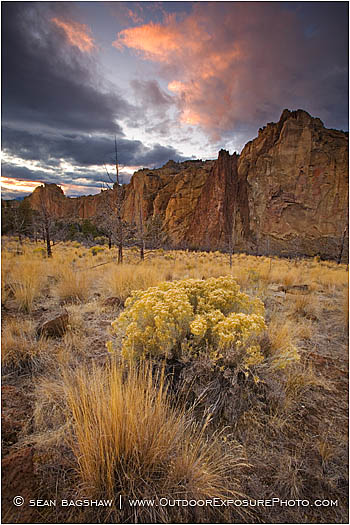
smith rocks

Use a wide angle lens. While fore/middle/background photos can be made using longer focal length lenses, they have the most dimension and depth when taken with a very wide angle lens. I like to use my 16-35mm zoom. For APS format digital SLRs that have a “crop factor” an even wider lens is needed.

Find a suitable landscape. Look for exciting background and middle ground elements first, such as dramatic sky, mountains, trees, streams, or shapes and patterns in the land that lead into the distance. Then look for an interesting subject that you can get close to for the foreground, such as a flower, plant, rock, log or intimate landscape feature.

Try many different camera positions to bring the elements together in a way that draws the viewer into the image. I like to use lines, light/shadow or motion to form a connection between my foreground and background, such as the S curve of a stream or ridge, a line of trees or rocks, or shadows cast by low angle sun. Sometimes moving the camera back and forth or up and down just a few inches will completely change the relationship between the different components.

Get close to your foreground. Wide angle lenses make distant objects look even more distant. To emphasize and showcase your foreground element you need to get close, sometimes within a few feet or even inches. Setting up too far away from your foreground feature makes it fade into the middle ground and leaves your foreground empty.

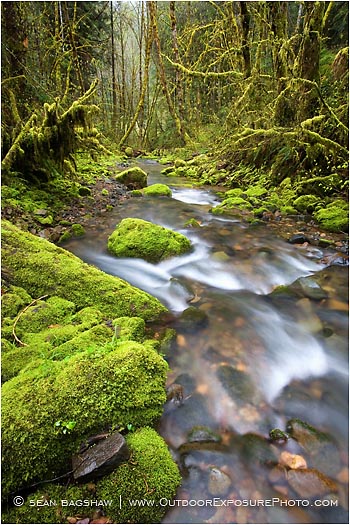
rainforest runoff

Use light and shadow to create the perception of depth. Side lighting helps reveal texture and shape and gives objects a more three dimensional look than direct front lighting. Also, within a composition, using areas of light and shadow to illuminate elements of the fore, middle and background add to the perception of depth.

Use a split neutral density filter to highlight the foreground and darken the more distant objects and the sky. The viewers eye will be drawn to the lighter foreground element first before being led into through the image towards the background. The darker background will appear more distant.

Filed Under: Digital Photography Tips, Photography Journal

Photoshop Tip: Two Pass Sharpening Workflow

November 27, 2007 by Sean Bagshaw Leave a Comment

Photoshop Tip: Two Pass Sharpening Workflow
Nearly all digital images need sharpening to some degree, and I apply various techniques and amounts of sharpening throughout my workflow. The most important sharpening stage, so that the final image looks crisp and focused, is done as a final step to the image once it has been sized for its intended use. When images are downsized they lose sharpness, as detail along edges is lost in the reducing process. When images are enlarged, the lack of sharpness inherent in digital images is magnified. Using Photoshop’s digital sharpening filters makes it possible to increase contrast along fine edges to bring back lost image sharpness. There are many ways to do this, but I have recently developed a technique that I think does quite well. It is important to note that digital sharpening is not a substitute for lack of sharpness in the original image. Proper focus, shutter speed and technique is required at the point of capture to enable good digital sharpening.First, open an image in Photoshop. Then, flatten all layers (if any exist) and size the image for its intended use (print, email, screen saver, etc.). For help on how to size images you can refer to my articles on SIZING FOR PRINTING or SIZING FOR EMAIL. Once the image has been sized it is time to apply sharpening to make it look appropriately sharp. The technique I have developed makes two sharpening passes. The first pass uses the Unsharp Mask filter set to add a small degree of sharpening to larger edges and details to help with the overall crispness and “pop” in the image. The second pass uses the Smart Mask filter set to add a greater amount of contrast to the very finest edges and lines in the image for razor sharp fine detail. Versions of Photoshop prior to CS2 don’t include the Smart Sharpen filter, so the second pass can also be made with the Unsharp Mask filter with good results.

Make sure that you are viewing the image at 100%, or, if it is a larger sized print, 50%. To complete the first, large detail sharpening pass go to Filter>Sharpen>Unsharp Mask. Select a Threshold of 1, a radius of .7 to 1.0 for web images and 1.5 to 2.5 for prints, and an amount in the 50 to 75 % range. I find it helpful to check and uncheck the preview box to dial in the right amount of sharpening. Select OK when you are finished. Now to sharpen the fine edges and details, go to Filter>Sharpen>Smart Sharpen (or Unsharp Mask again if your version of PS is pre CS2). Set the Remove box to Lens Blur, the radius to 0.1 for screen and web size images or .2 to .4 for prints, depending on how large the print will be, and finally, adjust the amount to 100 to 140% or until the desired sharpness is achieved.

I find that this two-pass sharpening technique does a great job of targeting sharpening to both the larger and finer details separately, especially for images that will be displayed on a screen. As with any sharpening technique, knowing how far to go without going too far is the key and some experimentation is needed to determine the best combination of adjustments for each individual image. Below are samples of a screen sized image. The first is not sharpened, the second is sharpened appropriately using this technique and the final image is over sharpened in my opinion.

sharp sample

Filed Under: Digital Image Editing Tips, Digital Photography Tips

Photoshop Tips: Sizing Photos For Printing

November 20, 2007 by Sean Bagshaw 4 Comments

Sizing digital images for various uses may be one of the most puzzling problems that the average digital photographer runs across these days. Do your eyes glaze over when trying to understand terms like resolution, pixels and dpi? Have you ever sent an image of your dog in an email that is so large that it fills up the recipient’s email in-box? Have you ever had an image enlarged and printed only to find out that the file size was too small and the printed photo is so pixilated that it looks like a graphic from an old Atari video game? If you answered yes to any of these questions then read on. Hopefully I can shed a little light on the matter.

In a previous article I provided some pointers for sizing images for email and the web. You can check out those tips by clicking HERE

Sizing images for printing is very different than sizing images for a computer screen. A concept that is difficult to wrap the mind around is the fact that the size you see an image on your screen is not the size at which it will print, unless you print at screen resolution, which generally does not have enough detail for good quality prints. For example, if I size an image to 4″ by 6″ inches at 80 dpi (dots per inch) it measures 4″x6″ on my monitor (this will be different from monitor to monitor depending on what the resolution of the monitor is set at). Screen resolution is usually between 72 and 96 dpi. At 80 dpi the 4″x6″ image looks great on my screen. When I print it, the print does indeed measure 4″x6″, but with only 80 dpi it is very blocky and pixilated. In order to get a detailed 4″x6″ print I would need to set the dpi much higher. When viewed on my 19″ screen, a 4″x6″ image at 300 dpi is too large to fit, even though it still prints as a 4″x6″ print (with much greater detail than the 4×6 @ 80 dpi). So, as you can see, how big an image appears on your screen does not necessarily indicate how large a print it will make.

Most cameras come with software that provide some help with sizing. However, this software is often oversimplified, giving the user very little control over the size and resolution of the final print. I prefer to use Photoshop, or some other advanced image editing software to size my images so that I have the most control. However, more contol also means more complexity, not something everyone wants. However you size your images, the requirements for getting good results remain the same.

Different methods of printing require different amounts of resolution detail, or dots per inch. If you don’t care that your print has jagged edges and visible pixels, then go ahead and print at 72 dpi. Some tests indicate that 150 dpi to be the minimum for good print results, but there are many factors that come in to play. For chemical process printing (non ink jet printing) 200 dpi is generally plenty of resolution. Most publishers (magazines, newspapers, etc.) have their printing standardized to 300 dpi and want all submissions at this resolution. The current generation of high quality ink jet photo printers are able to resolve detail in the 300 to 360 dpi range, although tests have shown that 240 dpi is almost indistinguishable and that 200 dpi gives great results. Knowing how the image will be printed will help you determine what dpi resolution to select when sizing the image.

Another consideration in selecting the dpi resolution at which to print has to do with the distance the print will be viewed at. Small prints that will be viewed close up benefit from higher print resolutions (240-300 dpi), while large prints that will be viewed from a few feet away can make due with lower print resolutions (150-200 dpi). Billboards that are viewed from hundreds of feet away are printed at 72 dpi and lower.

Once you know what dpi resolution you will select, the next thing to do before sizing is determine the native size of the image; in other words, the size at which it came out of the camera. In Photoshop it is easy to determine this. Open an image and then go to Image>Image Size. A dialog box will open that indicates the pixel dimensions as well as the dimensions in inches and the dpi (dots per inch). Next to the pixel dimensions it also indicates the total pixel count in thousands (k). It takes one million pixels (1000 k) to equal one megapixel. If the number in the dpi box already matches your desired print resolution, simply look at the inch measurements and they will show the height and width that the image will print. If the dpi is not correct for your desired print method, make sure that the “Resample Image” box is un-checked and then change the dpi to what you want. Once the dpi matches your desired print resolution you can now look at the image dimensions in inches to determine how large it is. For example, if you set the dpi to 200 and the dimensions in inches are 10 inches by 15 inches, the file will make a 10″x15″ print without any changes to its size. If you want to make a print that is 10″x15″ or smaller, then you are in good shape. Downsizing an image doesn’t create any resolution problems. Let’s say you want to make an 8″x12″ print. Simply re-check the “Resample Image” box, leave the dpi at 200 and then type 12 into the box that currently indicates 15 inches. If the “Constrain Proportions” box is also checked (which it should be) then the box indicating 10 inches will automatically change to 8. Click “OK” and your image will automatically be sized to print at 8″x12″ at 200 dpi. Remember not to save the image now unless you do so with a different name. Otherwise you will have permanently saved the image at the smaller size.

Now, let’s suppose that you want to enlarge the image so it prints bigger than its native size of 10″x15″ at 200 dpi. When enlarging, or upsizing, images you need to be a little more careful than when downsizing. To downsize, the software can simply remove pixels to shrink the image, which will not degrade how the smaller image appears to your eye. In order to enlarge an image, the software must add pixels. The act of removing or adding pixels is called interpolation. When interpolating an enlargement, the program uses complex math to decide how best to add pixels to make the image bigger. The current generation of interpolation software contained in Photoshop or third party applications, such as Genuine Fractals, is amazingly good at doing this. Lots of pixels can be added to enlarge an image without a noticeable decline in image quality. However, the computer can not add detail that wasn’t recorded by the camera, so at some point an enlargement will begin to show digital artifacts left by the computer doing its best to add large numbers of new pixels.

To enlarge an image in Photoshop, follow the same steps as when downsizing. Open the image in Photoshop and go to Image>Image Size. Uncheck the “Resample Image” box and enter the desired dpi resolution. This will show you how big the image will print at that dpi without any change in size. Using our previous hypothetic example, the image will print at 10″x15″ at 200 dpi. If you wish to print the image at 16″x24″ at 200 dpi, you know you will need to use interpolation to enlarge the print. As before, simply recheck the “Resample Image” box and change 10 inches to 16 inches. With the proportions constrained, the 15 inch box will automatically change to 24 inches. Click OK and Photoshop will enlarge the image accordingly.

How much can you enlarge an image and still maintain fine image detail? The answer is largely dependant on your own personal taste, the material the image is being printed on and the distance at which the image will be viewed. I have enlarged some 8×12 inch @ 300dpi images to 20×30 inches @ 300dpi with very good results, especially when viewed at normal viewing distance. The master print lab that I use has a very handy chart that helps visualize just how much various sized image files can be enlarged with good results. The chart can be viewed by clicking HERE.

So far, all of the sizing examples I have given have assumed that the image is being enlarged or reduced while maintaining the same dimensional proportions of the original. For example, an 8″x12″ image will perfectly size to 4″x6″, 10″x15″ or 12″x18″ because the proportions have not changed. However, it will not cleanly size to 5″x7″, 8″x10″ or 11″x14″ because the proportions are different. In order to size an image for printing and also crop the image to new proportions at the same time, use the Crop tool. Open an image in Photoshop and then click the Crop tool on the tools palette (or press “c” on the keyboard). With the Crop tool selected some cropping control boxes will appear below the menu tabs at the top of the page. Here you can enter your desired print dimensions and dpi resolution. If you wish to print an image at 8″x10″ at 300 dpi, simply enter those figures in the appropriate boxes. Then, move the crop tool to one corner of the image and drag to select the area that will be cropped. Once you have created the cropping area, you can use your mouse to move it around and fine tune your selection. You will notice that because you are changing the proportions of the image, some of the image will be cropped out. Once you are happy with your cropping selection, double click inside the selection or press the Return key and the image will be cropped and sized to your specifications.

Filed Under: Digital Image Editing Tips, Digital Photography Tips

Photoshop Tips: Sizing Images For Email

November 19, 2007 by Sean Bagshaw Leave a Comment

One of the great advantages of digital photography is the ability to easily share your photos with others. In addition to making traditional style prints, digital images can be posted on websites, uploaded to digital personal organizers, displayed on cell phones and emailed. In my business I email photos on a regular basis. I email photo submissions to publishers, proofs to commercial clients and archived image samples to stock photo buyers. But it isn’t just professional photographers who email lots of images. I also email shots of my kids to the grandparents and photos I took out skiing to my friends. Emailing digital images is most likely the number one thing that people using digital cameras do with their photos and yet many people don’t have a clue how to optimize their photos for best email performance.

The most important consideration when emailing photos is image size, especially for those of us with dial-up Internet connections, but also for those with broadband. If you set your camera to take images at a size that’s right for email then they are too small to make good prints, but if you try to email full size images they take a long time to send and don’t even fit on the screen for viewing. The solution is resizing. Most cameras these days come with software that can easily help you resize your images for email. It is also easy to resize images in image editing software such as Adobe Photoshop. However you go about sizing your photos, here are a few tips that I follow to make sure that I’m not the guy emailing photos so large that they overfill inboxes, take several hours to download and can’t be viewed without scrolling around. These tips only apply to photos that are intended to be viewed on screen but not printed. Print size files need to be large to give good print quality.

First, I like to size my photos so they are about 500 pixels on the longest side and have a resolution of 72 DPI (dots per inch). This enables them to be viewed on smaller monitors and even within the email message window without opening them full screen. 72 DPI is important because that is about the maximum resolution that a monitor can show. Images for print often need 300 DPI or more, but this is a lot of extra information that doesn’t make the image look any better on the screen. A 300 DPI image that is 500 pixels on its longest side contains 16 times more data than the same size image at 72 DPI.

Second, I save the resized images to be emailed with a different name in a separate email folder. This way I don’t change the original image file and I can safely delete the resized images from the email folder when I don’t need them any more without accidentally losing the originals.

Third, I save the email images as JPEG (.jpg) files and set the quality to medium (about 5 on the Photoshop scale) to compress the files even more. These steps ensure that I am emailing the smallest files possible and that they send quickly, don’t fill up all the space in someone’s inbox and can easily be viewed on screen.

One more tip if you are using software like Photoshop is to apply unsharp mask (Filter>Sharpen>Unsharp Mask) to the final sized image before saving and sending it. When you downsize an image it loses some detail that can be brought back with a little sharpening. Good luck and happy emailing.

Filed Under: Digital Image Editing Tips, Digital Photography Tips

Getting Our Images To Match Our Vision

November 15, 2007 by Sean Bagshaw Leave a Comment

Getting Our Images To Match Our Vision
Donna, a fellow photography enthusiast recently emailed me for some suggestions on two of her photos. Both photos clearly show a strong sense of purpose and concept, but she felt that the results did not match what she envisioned when she took them. Her questions reminded me of my own struggles to create images that live up to my vision, percpetion and experience. I thought the content of our diologue might prove helpful to other photographers who are inevitably confronted with the same challenges.
Hi Sean,
I couldn’t resist sending you a couple of photos that I have taken recently. I am learning to try to see things from a different perspective.

donna1

The first one is so you can tell me how I could have made it better. It was such an interesting contrast. The bright autumn tree standing at the far edge of the old, subdued cemetery. I was using my little Fuji and it just doesn’t do as well with dim light. I took some shots up closer to the tree, but I like this one best. It just didn’t quite come off as I had hoped.

donna2

The other is by the Lithia fountain in the park. It was shot hastily when I was there with guests. I wish you had been with me on both occasions, I think you would have come up with some really good versions of what I was attempting.Thanks for your help.

Donna

Hi Donna,

I see what you are going for with both shots and both are very worthy subjects. You obviously have an eye for elements that make an interesting image. In the first there is the juxtaposition of color and mood, and a sense of perspective that draws the eye along the headstones, through the cemetery to the orange tree. In the second I can almost feel the warm glowing light transmitting through the trees and bathing the autumn scene in soft, magical tones.

I think you did particularly well with both of these images for the circumstances. There are a couple of composition choices that I might have made differently, but that is hard to say without actually being there. For example, in the cemetery image, it feels like there is too much empty space in the lower left corner. My instinct would be to move a bit and to adjust the composition, but then the headstones might not line up or the tree might lose its central focus. It is hard to know without being there.

I think most of what isn’t meeting your expectations in these images are functions of lighting, atmosphere, equipment, technique and post processing. The same cemetery shot taken at sunrise on a misty morning, with warm light casting long rays and shadows across the scene and lighting the tree would give it some of the drama you were perhaps feeling when you were there. A dense foggy day would give another mood, but also add to the image.

I have made many trips to, and shot hundreds of photos of, the Rogue Gorge in a variety of conditions. I was never happy with a single photo, even though I felt there was something there worth capturing. So, I kept going back. Finally I happened to be there on an amazing morning last month when the elements all came together and I made a photo that captured something of what I had been visualizing. It took me five years to get that photo and I will probably never again be able to get such a shot (although there is always the chance I’ll experience something different but just as good). I really can’t overstress the value of timing, perseverance and luck in outdoor photography.

Crimson Gorge

The equipment, techniques and post processing used in creating a photo also have a great deal to do with getting a shot to match your vision. The same Rogue Gorge shot wouldn’t have been possible with my handheld pocket camera. I was using a camera with a large, high resolution sensor and a high quality lens. The exposure lasted for several seconds so I was shooting on a tripod. I used a polarizing filter to help cut the glare off the water and the wet rocks and a graduated filter to try to hold back the exposure of the sky. I also took two different exposures and blended them in Photoshop because the sky was so much brighter than the dark foreground that the camera couldn’t record the entire range of light in one shot even with the graduated filter. All told, including learning the techniques, I may have spent hundreds of hours creating that one shot.

So, I guess what I’m getting at here is that I think you are completely on the right track with your photos. Keep looking, seeing and photographing things that get your attention when you find them. This is how you develop your personal vision. I think developing that vision is the most important step, but it is only one step in getting your photos to match the vision. The other steps are a little harder to pin down. Learning the camera and processing techniques takes time and practice, getting the equipment takes money and finding the right conditions takes perseverance, patience and luck. In the end, however, it is the vision that matters the most. The best part is you don’t even need a camera to explore your vision. I’m always visualizing photos in my mind, as I drive or walk down the street. I often hike through the woods without taking photos, instead holding up my fingers to help me frame and visualize my “virtual photographs”.

I think every photographer is constantly struggling to create photos that best express his or her inward impression of the experiences he or she has with the surroundings, but I don’t think anyone fully achieves that. I’m content knowing that my images are incrementally getting closer to my vision, but that I’m not in any danger of putting away my camera because I have done all there is to do.

Best,

Sean

Filed Under: Digital Photography Tips, Photography Journal

Photographing A Lunar Eclipse

September 5, 2007 by Sean Bagshaw 9 Comments

Photographing A Lunar Eclipse

Since the beginning of human existence night sky events have inspired in us wonder, awe, inquiry, fear and superstition. Solar and lunar eclipses are particularly inspiring because they affect the largest and most important objects in the sky, the Sun and Moon. Armed with some basic knowledge they also provide us with a real-time opportunity to observe and understand the motion, relationships and interactions among the Earth, Sun and Moon. Solar eclipses (the Earth passing through the Moon’s shadow) happen less frequently than lunar eclipses (the Moon passing through the Earth’s shadow) and, due to the harmful effects of staring at the sun, are also harder to observe directly. Lunar eclipses occur about twice a year and, other than happening in the dark, are easy and safe to view. As such, they provide an excellent photography opportunity, one that can yield great documentation of a cosmological event and, with a little creative vision, compelling artistic imagery.

On August 28, 2007 a total lunar eclipse was visible from the western portion of North America. With clear skies and summer temperatures in the forecast a photographer friend and I decided to take the opportunity to try our hand at photographing the event. Even though lunar eclipses are common on a cosmic scale, they are rare enough in the course of a photographer’s career that there might only be a few chances to be in the right place at the right time to photograph one. Neither my friend nor I had photographed one before, so a little research and education was in order. There are many good sources of information on lunar eclipses on the Web. The following two links were particularly helpful in preparing to capture the eclipse on camera.

NASA’s Eclipse Info Site

The eclipse photo site of the famed “Mr. Eclipse”

A lunar eclipse only occurs during a full moon because that is when the Moon is situated directly opposite the Sun with the Earth in the middle allowing the Earth to cast its shadow on the Moon. An eclipse doesn’t occur with every full moon because the Earth casts a shadow along a plane in line with the Sun, but the Moon’s orbit only crosses some portion of that plane two to four times per year. The rest of the time the full moon is either above or below the plane of the Earth’s shadow and no eclipse occurs. Additionally, a full moon can only be seen at night due to its location opposite the sun. This means that even if an eclipse happens, you must be on the night side of the Earth to observe it. The day side of the Earth faces the Sun and faces away from the full moon, so people on the day side of the Earth during an eclipse will not be able to see it. The NASA link above provides some excellent diagrams showing how this works.

Photographing a lunar eclipse presents some challenges, but due to the slow speed and predictable nature, it is possible to prepare before hand and do a lot of trial and error while photographing one. The first challenge is being in the right place at the right time. Some enthusiasts will travel to a place on the planet where it is known an eclipse will be visible. Others, like myself, wait until an eclipse will be visible where they live. Weather is another challenge. If the sky is cloud covered the eclipse will not be visible. Many eclipses occur late in the night and getting out of bed can be a particular challenge for some. Also, a total eclipse can last up to several hours from start to finish, so some commitment and patience is required to photograph the entire thing.

Photographically speaking there are several considerations to take into account when preparing to photograph a lunar eclipse. To see the surface of the moon with a great amount of detail, a large telephoto lens is necessary. Lenses in the range of 300mm to 500mm will enlarge the moon enough for sufficient detail, but even larger lenses or small telescopes fitted for photography are needed to get a full frame image of the moon. A wider angle lens can be used with a film camera to take multiple exposures of the moon on a single piece of film. If exposures are taken every ten minutes or so, the final image will show the actual arc of the moon in intervals throughout the period of the eclipse. Most digital cameras aren’t able to take multiple exposures in one image, so to get this affect, individual exposures of the moon must be taken and then placed together in an arc in a computer using image editing software like Photoshop. For my image of the full eclipse arc I took photographs about every 10 minutes during the five hour duration of the eclipse. Then I selected 20 photos that I felt made a good sequence. In Photoshop I cut the moon out of each imaged, sized them and placed them in an arc on a black background. Then I superimposed the moon arc onto a foreground image that I took from the same location on the same night. The final image does not show the actual path of the moon in the sky, but does give a pleasing and somewhat accurate representation of the event. I chose to include the pre-dawn colors on the horizon for artistic affect even though a full moon is actually located directly opposite the rising sun.

Regardless of whether you want to take close-ups or a wide angle, multiple exposure image, you will need to be prepared to adjust the length of exposure as the eclipse progresses. A fully lit full moon is very bright and has the same exposure requirements as sunlight on rock (since that’s what it is). But, as the shadow passes over the moon and the light shifts from direct light to indirect light, the exposure times will lengthen considerably. For the completely lit full moon my exposure times were 1/400 of a second at f/5.6 with an ISO setting of 100. As the Moon passed further into the Earth’s shadow the exposure times became longer. I bracketed my exposures on almost every image to make sure that I had at least one image in which the moon was properly exposed. Eventually I reached an exposure time of one second. From calculations made before the shoot (with help from THIS website), I knew that with a 400mm lens, any exposure time longer than one second would not be fast enough to stop the Moon’s motion in the sky, resulting in a blurry image. To maintain my one second maximum exposure time I began to adjust the ISO instead of my shutter speed to offset the drop in light. In digital cameras, ISO is the measure of how sensitive the sensor is to light. Higher settings are more sensitive so they would allow me to maintain my one second exposure time, even though the Moon kept getting darker. However, higher ISO settings also introduce noise into a digital image, so I wanted to keep the ISO as low as possible to minimize noise. When the Moon was completely within the Earth’s umbral shadow (totality) my exposure was 1 second @ f/5.6 with an ISO setting of 640. Then as the Moon passed back out of the shadow I reversed what I did during the first half of the eclipse.

Many people have asked me about the color of the Moon when it is in totality. This particular eclipse featured a beautiful brick orange/red color. The color is determined by the way light is refracted through particles and clouds in the Earth’s atmosphere as it curves around the surface of the Earth. Depending on cloud cover, pollution, fires and recent volcanic activity, the color of an eclipsed moon can vary from light orange to brick red to dark brown. The difference in brightness between the lit and shadowed portions of the Moon during partial eclipse is so great that a camera can not “see” both the dark and light side at the same time. However, the human eye can, so when we observe an eclipse we see the reddish shadow advancing across the bright face of the moon but we see detail in all areas. What a camera sees is either the red shadowed side with the light side completely white, or the light side with the shadowed side completely black. By blending two different exposures of the moon in Photoshop, I was able to create an image that shows detail in both the shadowed and lit portions of the Moon during partial eclipse, much closer to the way it would appear the human eye.

I hope you have enjoyed viewing my lunar eclipse photography and found the information on eclipses and how to photograph them helpful. My lunar eclipse photos are available as signed art prints as well as more affordable special editon poster prints. If you are interested in purchasing a signed art print or a special edition poster, please contact me HERE.

Filed Under: Digital Image Editing Tips, Digital Photography Tips, Photography Journal

Canon EOS 1D Mark III Is Sweet, But How About A Canon EOS 5D Mark II?

August 14, 2007 by Sean Bagshaw 4 Comments

Canon EOS 1D Mark III Is Sweet, But How About A Canon EOS 5D Mark II?
Canon EOS 1D Mark III

The Canon EOS 1D Mark III vs. the Canon EOS 5D

While teaching a private digital photography lesson I was able to get my hands on and familiarize myself with the recently released and industry rocking new Canon EOS 1D Mark III. I haven’t had enough time to get to know all the finer details and nuances of this camera, but at first look I would have to say that it does live up to the hype it has received and certainly sets a new level of function and performance in the high-end DSLR world. However, the most important question on my mind is, “as a landscape, architecture and travel photographer does the Canon EOS 1D Mark III have what it takes to get me to pony up $4000 and switch over from my current much loved Canon EOS 5D, 12.7 megapixel, full frame camera?”
1D Mark III Basic Specifications
Resolution: 10.10 Megapixels
Kit Lens: n/a
Viewfinder: Optical / LCD
LCD Size: 3.0 inch
ISO: 50-6400
Shutter: 30-1/8000
Max Aperture: n/a
Mem Type: CF1 / CF2 / SDHC / SD
Battery: Custom LiIon
Dimensions: 6.1×6.2×3.1in
(156x157x80mm)
Weight: 40.4 oz
(1,155 g)
MSRP: $4,000
Availability: On The market
About a year and a half ago I purchased my 5D and have been very pleased with it ever since. The small size and weight, superior resolution, ease of use, price and full frame sensor form a pretty solid base of features important to the types of photography that I do. The $8000 price tag of the respected full frame EOS 1Ds Mark II along with its notoriously complex operation and large, heavy body all made it impractical for hauling into the wilderness, shooting in the dark and operating it in abusive conditions. The 1D Mark II N was geared more towards sports and journalistic photography and didn’t have the resolution I wanted, not to mention that the smaller APS sized sensor cut into my wide angle capability. Upon first reading about the 1D Mark III I thought that it might just have the right combination of advanced technology and features to persuade me to make the jump.As stated by Dave Etchells and Shawn Barnett on image-resource.com, “the big story with the Canon EOS 1D Mark III is that it’s a better, more universally appealing professional camera for more types of professional photographers. A lot of intermediate photographers may want to make the jump as well, given its more friendly interface and astonishing high ISO performance. And, the Canon EOS 1D Mark III isn’t just for sports anymore. It’s a more universal camera for the vast majority of pro photographers. With the multiple improvements in the new camera, photographers will no longer need to trade off resolution, image quality, and speed against each other. The 1D Mark III now has enough of all three to satisfy a huge slice of the market in a single camera body.”
While the 1D Mark III’s 10 frames per second burst rate, the fastest in the world, is impressive it really isn’t an important consideration for photographers who photograph low motion subjects like landscapes. Below I have listed the features of the 1D Mark III that really caught my eye as a landscape and architecture photographer that might challenge my preference for the 5D.

  • Three inch LCD monitor with live view capability for on screen compositions – handy for creative and difficult compositions.
  • Dual DIGIC III Image Processors for fine detail, natural color reproduction and high-speed performance – I’m all about better color reproduction and fine detail. High speed is an added bonus.
  • Professional EOS Integrated Cleaning System with Self-Cleaning Sensor Unit – dust spots on the sensor may be my single biggest gripe with digital SLRs.
  • Dust Delete Data acquisition – for those times when the self-cleaning sensor misses some specks.
  • More intuitive menus and controls similar to the 5D – my 5D fits like a glove and is almost as easy to use.
  • Expanded ISO range with less noise in images shot at a higher ISO – I often shoot on a tripod, but expanding my handheld shooting ability while still producing low noise images is very tempting.
  • 14-bit A/D conversion for fine color/tonal gradation – again, any technology that allows for better, more accurate color reproduction is high on my list of priorities.
  • New 10.1-megapixel CMOS sensor, improved microlens array and pixel fill factor plus optimized photodiode structure to increase light-reception efficiency – the improved sensor design and resolution along with the other image quality enhancements would most likely give me plenty of detail for 20 x 30 art prints or larger (as with my 5D), but I’m not excited about the smaller than full frame sensor size. I really need to be able to access the entire wide angle view of my 16 mm lens.
  • Increased shutter durability of approximately 300,000 cycles – it just keeps going and going.
  • 50% less shadow noise for all images – shadow noise is something that I’m constantly trying to avoid in my landscape photography.
  • High-capacity, lightweight and compact lithium-ion battery with estimated battery life display – lithium-ion is the way to go and I like that Canon has finally figured out a way to let you know how much more time you have left on your battery.
  • Strong magnesium alloy body construction sealed to resist dust and water – I take my gear to some pretty harsh environments. The fact that the 5D is not as well sealed as the 1D series cameras is one of its serious drawbacks for abusive professional photographers.

Based on the image comparisons I have been able to make between the 1D Mark III and the 5D, along with viewing many sample images taken by independent reviewers on the web, I would have to say that the Mark III certainly does produce remarkably detailed high resolution images with extremely accurate colors. When used with a sharp lens, the 1D Mark III can produce images with a vast amount of fine detail. I would say that the image quality and resolution at low ISO settings rivals that of the 12 megapixel 5D. In some situations, such as along high contrast edges, in shadow detail and in tricky lighting, I would say that the Mark III even outperforms the 5D.
However, this camera really shows its stuff with its low noise levels when shooting at higher ISO settings. Even at its highest setting of ISO 6,400, the images are cleaner than those shot at ISO 1600 and perhaps even 800 on the 5D. There is digital noise, but there’s still an amazing amount of shadow detail and finer detail for such a sensitive ISO setting. At lower sensitivities, images are extremely clean, and noise doesn’t even begin to show up significantly on monitors until you reach ISO 800.

The 1D Mark III certainly sets new standards on many fronts. The ease of use, sensor cleaning technology, color accuracy, detailed resolution and low noise are features that really excite me, and there are many more that are pretty cool, although not essential, to the landscape photographer. Impressive as it is, would it tempt me away from my 5D? It is close, but the answer is, Nope.

The main factor that would keep me away is the APS-H sized sensor which applies a magnification factor of 1.3x to the focal length of the lens. Being able to get full use out my wide-angle lenses with the 5D is just too important to give up. To a lesser degree I am also deterred by the size and weight of the camera.

So what would the camera that would get me to hand over the keys to my 5D look like? We’ll my guess is it would be called the EOS 5D Mark II and it would have the follwing features:

  • A compact, lightweight body like the current 5D
  • Magnesium alloy body construction sealed against dust and moisture to the same standards as the EOS 1D cameras
  • The same dual DIGIC III processors, firmware and sensor improvements found in the 1D Mark III
  • The same high sensitivity/low noise ability of the 1D Mark III
  • 14 bit color
  • Live view LCD screen
  • Self-Cleaning Sensor Unit
  • The same intuitive menu and control system found on the 5D and 1D Mark III
  • Battery life display
  • Shutter rated to 300,000 shots
  • And most importantly…a FULL FRAME sensor in the 13-16 megapixel range

What is the chance that such a camera is on the horizon? The consensus among the big dogs seems to be that Canon will put this technology to use at the top end first by coming out with a 1Ds Mark III. It would include all the improvements made to the 1D but it is anticipated that the new 1Ds will feature a 22 megapixel full frame sensor as well. This is sure to be an amazing camera, but the body size and likely $7000 to $9000 price tag will not place it high on my wish list. Hopefully, soon after that, a new 5D will hit the market. I’m holding out for that day.

Filed Under: Digital Photography Tips, Photography Equipment

Thoughts On Signing and Numbering Art Prints

May 3, 2007 by Sean Bagshaw 6 Comments

I often get questions about the signing and numbering of photography prints. As with any art work, piece of music or writing, the author adds his signature as a way of identification and as a stamp of completion and approval. I sign and number all my prints. At some point I might offer non-numbered, open edition prints, but at this point all my prints are part of limited editions. I generally sign and number prints on the white border below the print with an acid free, archival ink pen. I sign on the lower right and number on the lower left. I sign close to the print edge so that a collector can choose to have it matted with the signature showing or so that the matte covers up the signature. Some photographers sign directly on the printed surface like a painter, and I have done this at times, but prefer not to write on the print itself. If I, myself, am having the framing done for a show or for a client I also sign and number the matte with a pencil in addition to signing the print itself. When I number the print I write it as a ratio of the print number over the total number in the edition. i.e. – 15/200.

In the darkroom days when an image was mastered from film an entire edition of prints was often produced all at the same time. So, by definition, the edition actually was limited. In these days of digital imaging we can create an infinite number of prints of varying sizes from our digital “master” whenever we please, so thier isn’t a functional reason to limit the number of prints. However, art buyers still value limited edition prints becasue they know they are purchasing something that hasn’t been mass produced and will continue to be a somewhat rare and collectible item. Deciding how to establish edition size can be tricky and will be different from one photographer to another. If editions are limited to only 10 prints this will increase perceived value, but will also strictly limit the photographer’s ability to create income from the photo over the course of his career. On the other hand, an edition of 1,000 prints is large enough to decrease the value of each print in collector’s eyes. Most photographers I know have limited editions between 50 and 200. Some also apply other rules to their limited editions. Some photographers have a sliding price scale so that the print price goes up as more of them sell. In theory, this encourages more early sales while the price is lower and then increases the price as the print gains popularity. Other photographers will reserve the first five or ten prints in an edition for gallery shows and special clients, or just to archive for the future.

It is important to carefully set edition numbers. Once an edition number is set it can’t change later. It is important to find a number small enough to be considered limited but which does not remove the image from the photographer’s portfolio too early in his career. It is also important to specify if the edition includes all print sizes or if each sizes constitues a separate edition.

To date, all my prints are in editions of 200 total, so no more than 200 of any image will be produced regardless of print size. At this point in my career none of my editions are in danger of selling out, which is good because I plan on selling them for many years to come.

Filed Under: Digital Photography Tips

Oregon Waterfalls In The Spring

April 20, 2007 by Sean Bagshaw Leave a Comment

Oregon Waterfalls In The Spring

Oregon is home to some of the most astounding waterfalls in the country. In the spring, with good water flow, lush greenery and filtered, overcast light, they offer some great photography opportunities. While waterfalls can be found all around the state, there are a few regions that have many waterfalls in a relatively small area, making it possible to visit a bunch of them in one trip. The three areas that I find particularly visitor friendly are the Columbia River Gorge Wilderness, Silver Creek State Park and the upper North Umpqua River. There are many excellent websites where you can get visitor information and directions to Oregon Waterfalls. Here are a couple I like:

www.waterfallsnorthwest.com/Oregon

www.obbg.org/blog/2021/07/oregon-trail-of-waterfalls-map/

Oregon Waterfalls In The Spring

Photographing waterfalls and rainforest streams can be challenging. The dense forest setting can create a situation of "too much going on" and make it difficult to get unobstructed views and find coherent compositions. Additionally, on a sunny day there is too much contrast between the bright and shadowed areas of the forest making it nearly impossible to balance the light and show detail in all areas of an image. Here are some tips that I have found helpful when photographing waterfalls and dense forest streams.

  • Shoot when the light is soft and balanced. This includes overcast days, mornings, evenings, and canyons deep in shadow.
  • Light rain or mist is your friend. Wet foliage really pops and light fog can add a very mystical dimension to photos.
  • Use a circular polarizer to cut out light scattered off the surface of shiny green plants and the surface of water. The difference this makes is amazing.
  • Shoot on a tripod. Since the best conditions for shooting are lower light conditions, your shutter speeds will necessarily be longer than you can hold steady. Add in a small aperture setting for increased depth of field and a polarizing filter and you could be looking at shutter speeds longer than one second.
  • For the best "smooth water" effects try for a shutter speed between .5 and 1.5 seconds. If your exposure is too long then the water loses all its texture.
  • If shooting digitally, shoot two exposures, one for the water and one for the foliage. When the foliage is properly exposed, the white, foamy areas of water will often be blown out and lacking detail. Shooting two exposures allows you to blend them later in Photoshop to achieve the correct exposure throughout. For my article on how to do this kind of exposure blending click HERE.
  • Look for interesting vantage points. Try angles down close to the water, up on a rock or a rise, across a ravine or from the side.
  • Don't simply shoot the waterfall or stream centered in the middle of the image. Place the waterfall off center and show some of the surroundings to give a sense of place. Look for ways to have curves in the stream lead your eye through the image at an angle. Try to cut out paths, bridges and other signs of people unless you are going for a "humans in nature" shot.
  • Tread carefully and preserve the beauty. Stay on trails in sensitive areas. Don't step on delicate plant life. Avoid muddy and eroding areas. Avoid entering off trail areas that are clearly getting too much use.

Filed Under: Digital Photography Tips, Photography Travel Journal

Next Page »

© 2026 · Sean Bagshaw Outdoor Exposure Photography